The recommended way to install Rust is to use "Rustup - The Rust toolchain installer".
It is included in most package managers, and can also be downloaded from rustup.rs.
Additionally, Rust requires a platform-specific linker and for some crates a dedicated C/C++ compiler.
¶ Installation
¶ Windows
If you have problems with winget, please see our FAQs.
On Windows, there are multiple options to get started with Rust. Choose one:
Native toolchain
- Install GCC / MinGW-w64 and use the GNU Toolchain. (~1.4 GB, recommended)
- Install MSVC build tools and Windows 10/11 SDK using the Visual Studio Installer and use the MSVC toolchain. (~6 GB)
- Install LLVM and use the GNULLVM tools/libraries instead of GCC/Binutils. (? GB, recommended for Windows on ARM)
- Install Ziglang as a C/C++ cross-compiler and use cargo-zigbuild to compile for your host architecture. (~300 MB, not recommended)
Virtualized
- Install the Windows Subsystem for Linux (WSL) and follow the installation for Linux - Ubuntu (not recommended)
- Install Docker and use a Docker Image that includes the Rust toolchain (not recommended)
For Windows on ARM, there exists no equivalent to MinGW-w64 and using MSVC it is not possible to compile some essential crates like ring. Please use LLVM instead.
¶ GCC / MinGW-w64
Install Rustup and a standalone MinGW-w64 build from winlibs.org using winget and set the default toolchain using the following commands on the command line:
winget install Rustlang.Rustup winlibs
# reopen terminal
rustup default stable-gnu
Alternatively, manually download a release from niXman/mingw-builds-binaries or winlibs.org (preferably x86_64, posix, ucrt), extract it to suitable location (e.g. C:\mingw64) and add the bin-folder to your PATH (see FAQs).
Then download and execute rustup-init.exe from rustup.rs, choose Option 3 at the "Rust Visual C++ prerequisites", Option 2 "Customize Installation" and set the "Default host triple" to x86_64-pc-windows-gnu.
¶ MSVC
Download and execute rustup-init.exe from rustup.rs.
Choosing Option 1 at the "Rust Visual C++ prerequisites" should automatically download and install the Visual Studio Installer, MSVC build tools and the Windows 10/11 SDK.
If this is not working for some reason, please follow the corresponding documentation.
¶ LLVM
Untested, please consult your Artur on Errors :)
winget install Rustlang.Rustup LLVM.LLVM
# reopen terminal
rustup default stable-gnullvm
Alternatively, manually download and install a release from github.com/llvm/llvm-project or github.com/mstorsjo/llvm-mingw.
Then, download and execute rustup-init.exe from rustup.rs, choose Option 3 at the "Rust Visual C++ prerequisites", Option 2 "Customize Installation" and set the "Default host triple" to x86_64-pc-windows-gnullvm or aarch64-pc-windows-gnullvm according to your Machine.
¶ WSL
Follow Microsoft's WSL Documentation and continue with the setup for Linux (Ubuntu).
TL/DR:
- Ensure Hardware Virtualization is enabled (Task-Manager -> Performance -> CPU -> Virtualization)
- Run
wsl --installon the command line - Install and run "Ubuntu" from Microsoft Store
- On Error: check FAQs and ask Artur :)
To connect your IDE to the WSL, check the corresponding guides for VSCode and RustRover.
¶ Docker
Follow Docker's installation docs or install Docker Desktop using winget on the command line:
winget install Docker.DockerDesktop
To build/run/test, run cargo within a Container using:
docker run -it --rm -v ${PWD}:/src -w /src rust cargo [build|run|..]
Alternatively, follow "How to use this image".
¶ macOS & Linux
Install Rustup and GCC with your package manager:
brew install rustup gcc                     # macOS
sudo apt install rustup build-essential     # Debian, Ubuntu, Linux Mint
sudo pacman -S rustup base-devel	          # Arch
sudo dnf install rustup @development-tools  # Fedora
Install the stable toolchain as default toolchain.
rustup default stable
¶ Validation
To validate your installation, create and run a sample project with cargo:
cargo new hello
cd hello
cargo run
> Hello, world!
¶ Editor / IDE
In principle, you can use any text editor to write Rust code and build/test/run it with cargo via the command line. However, using a proper Rust IDE offers various advantages such as autocomplete, error diagnostics, build automation and others.
For beginners, suitable choices are Visual Studio Code + rust-analyzer and RustRover by Jetbrains.
If you are comfortable with another IDE you're allowed to use it, however we might not be able to support you adequately if you do.
Since the IDE uses your local toolchain, it is still your responsibility to set up a proper Rust installation!
¶ Disable AI features
As AI Tools are forbidden in the RoboLab, make sure to disable all AI backed Tools for Code Generation and Autocompletion!
¶ VSCode
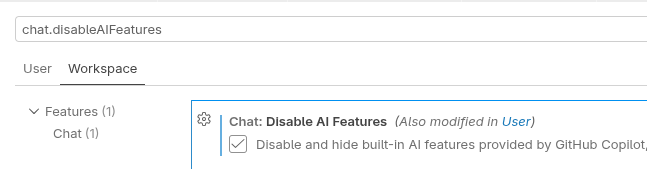
Press Ctrl+, to open your Preferences, switch to your Workspace-Settings, search for chat.disableAIFeatures and enable "Disable AI Features"
¶ RustRover
Uninstall Plugin JetBrains AI Assistant:
- Click on the gear icon in RustRover and select
Plugins... - Go to
Installed, select the AI plugin and uninstall it
Deactivate build-in code completion using remote suggestion package
- Click on the gear icon in RustRover and select
Settings... - On the left, navigate to
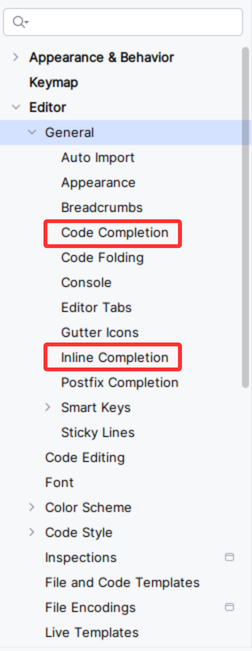
Editor->General
- Select
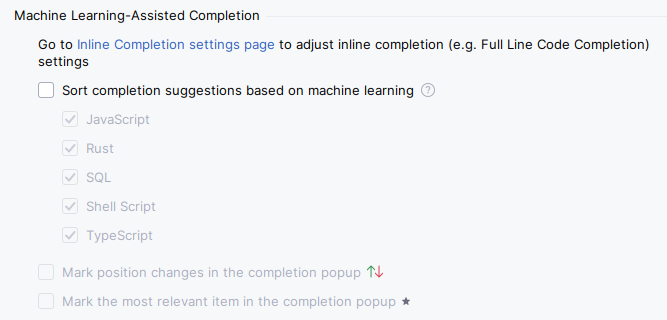
Code Completionand, on the right underMachine Learning-Assisted Completion, unselect the following:
Sort completion suggestions based on machine learning
- Select
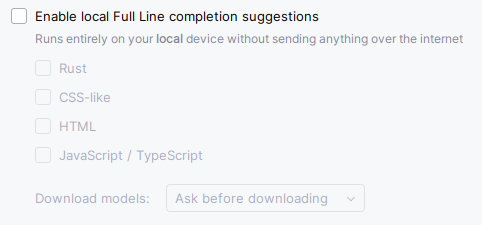
Inline Completionand, on the right, unselect the following:
Enable local Full Line completion suggestions
- Select