¶ Step 1: Download our latest ev3dev/modbrick-robolab image file
We are using customized images, grab the latest release according to your Brick from OS > Downloads.
¶ Step 2: Flash the SD card
Next the image has to be flashed onto the SD card you received with your LEGO EV3 box.
For this we will use a neat tool called Balena Etcher that comes with cross-platform support and won't give you any headaches.
Depending on your Operating System there are other legitimate ways of writing our image to the SD card, just always make sure to select the correct drive!
- Download, install and launch Balena Etcher from balena.io/etcher
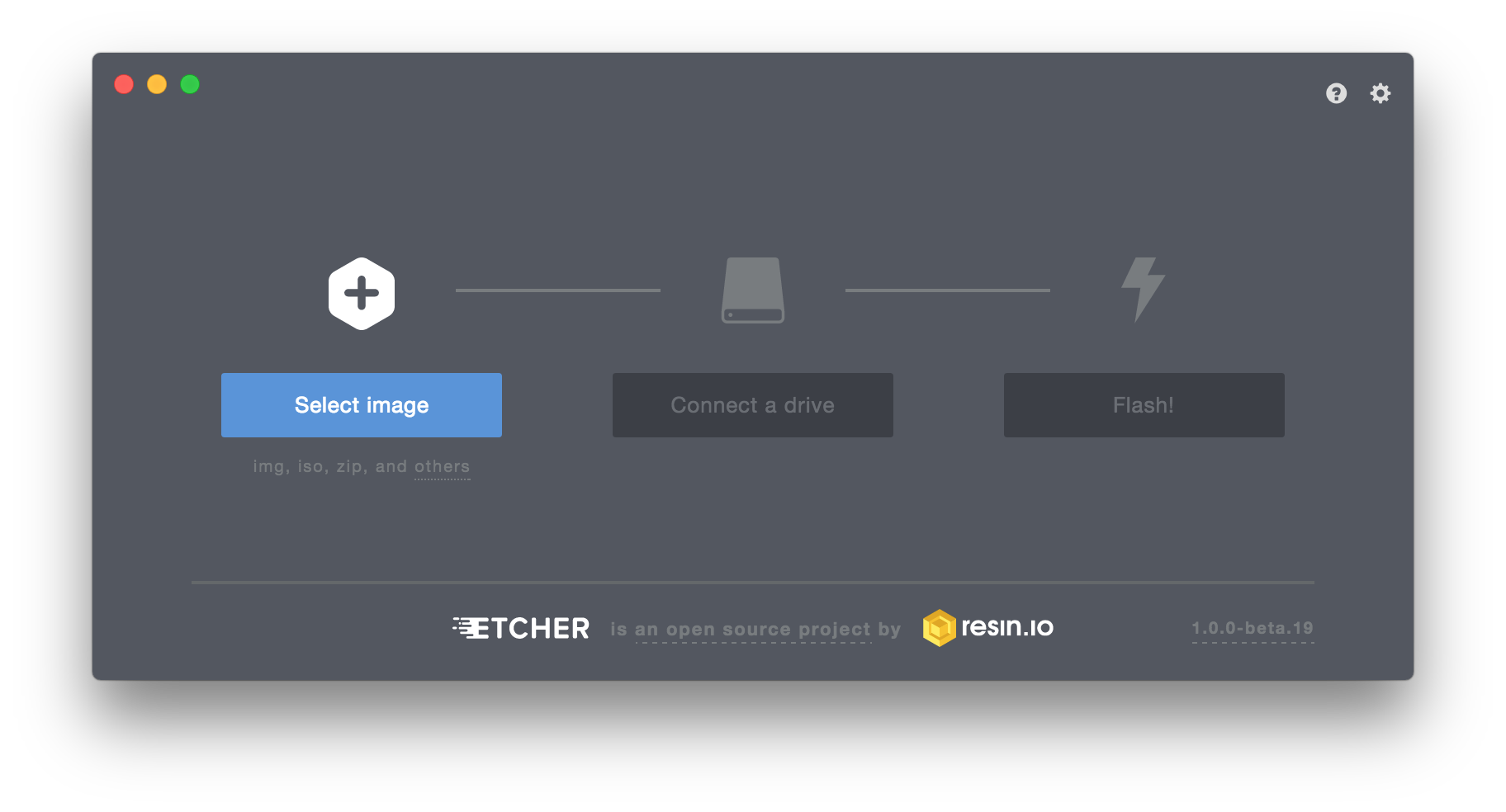
- Select the previously downloaded image file. There's no need to extract the compressed image, Etcher will work fine with any
.ziporimg.xzarchive.
-
Use the packaged microSD to SD adapter or any personal accessory to plug the SD card into your computer.
-
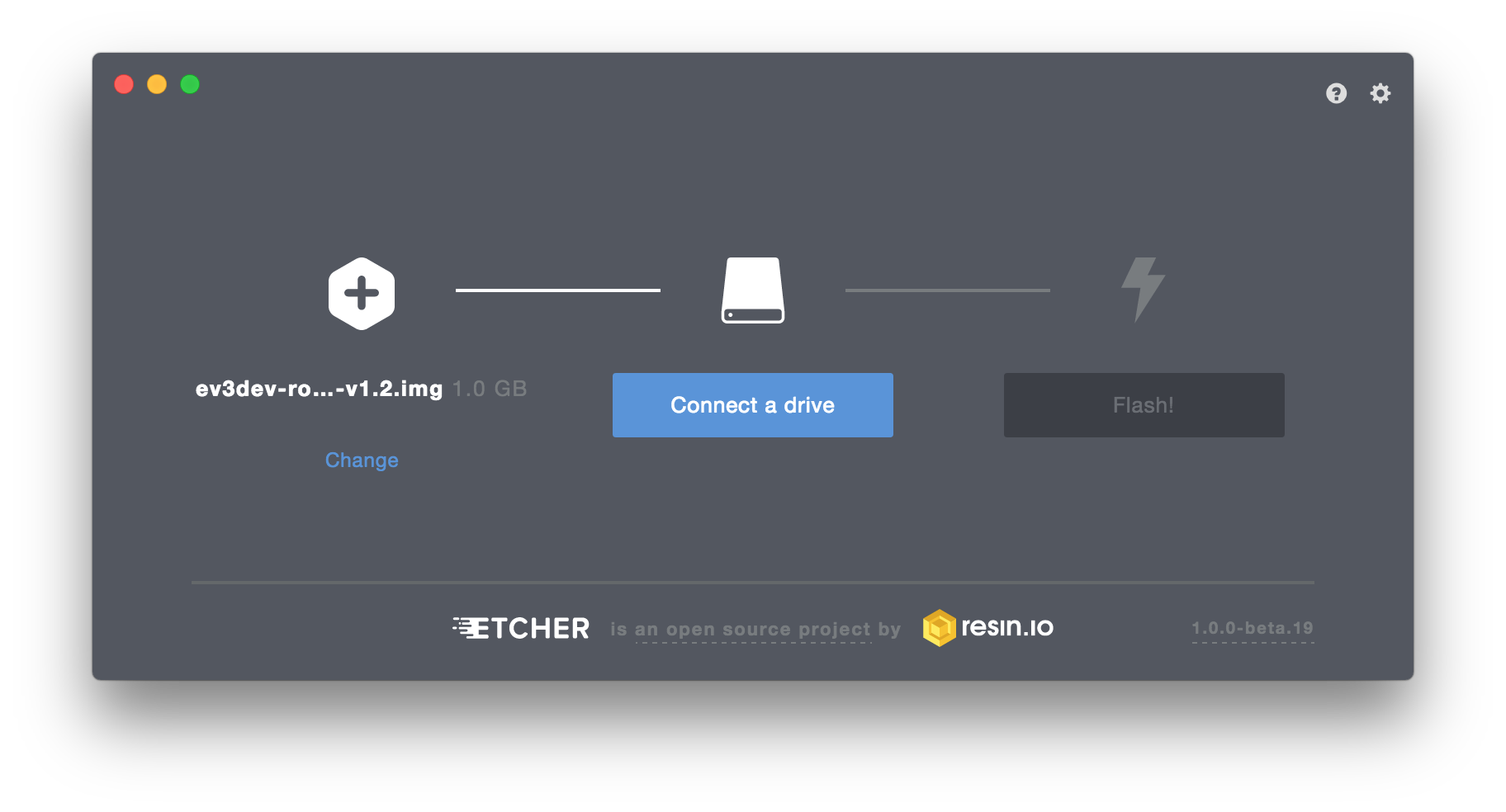
Etcher will detect the new device and display the drive information. If multiple removable devices (for instance USB drives) are connected, you have to select the SD card from the list by hitting "Change" below the currently selected drive.
Please make sure that you have selected the correct drive for flashing the image, as all pre-existent data will be erased!
If you're uncertain, simply temporarily disconnect all periphery (USB flash drives, etc.) except the SD card from your computer and then start Etcher.
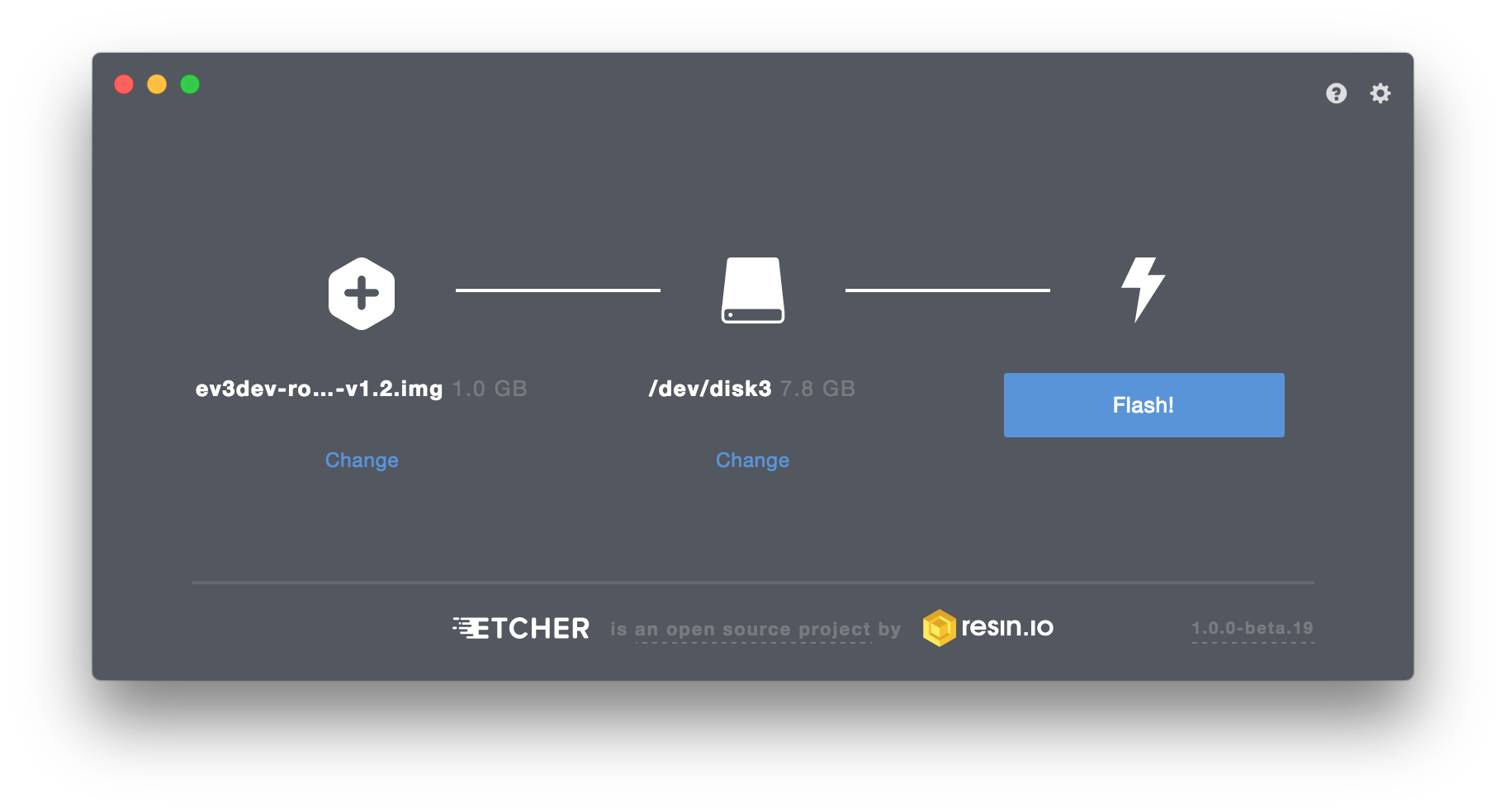
- Now start the process of copying the image by a click on the "Flash!" button.
On Linux systems it is possible that you will be asked for the root password.
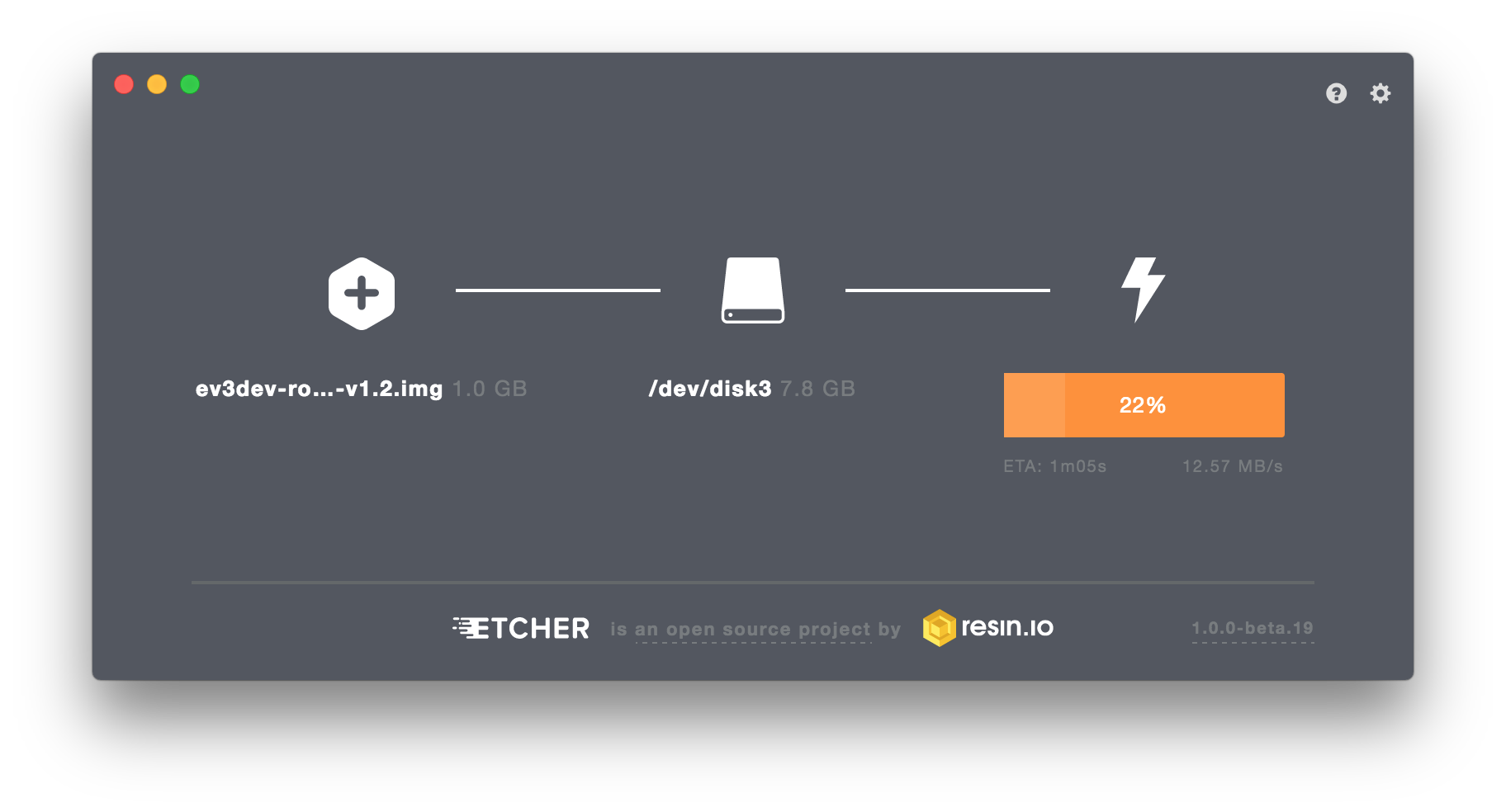
- After flashing the SD card, Etcher will automatically run a fast check that validates the integrity.
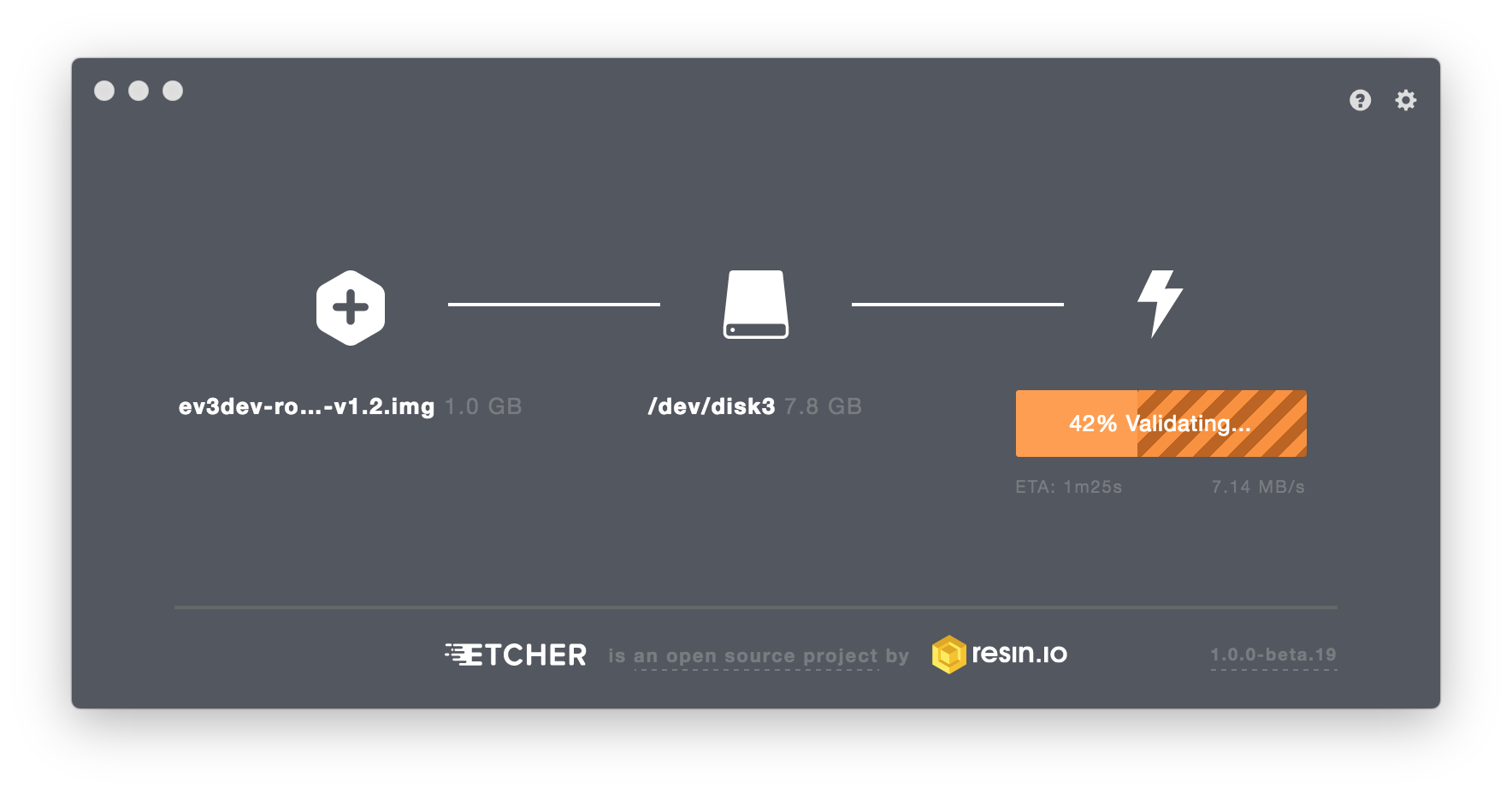 )
)
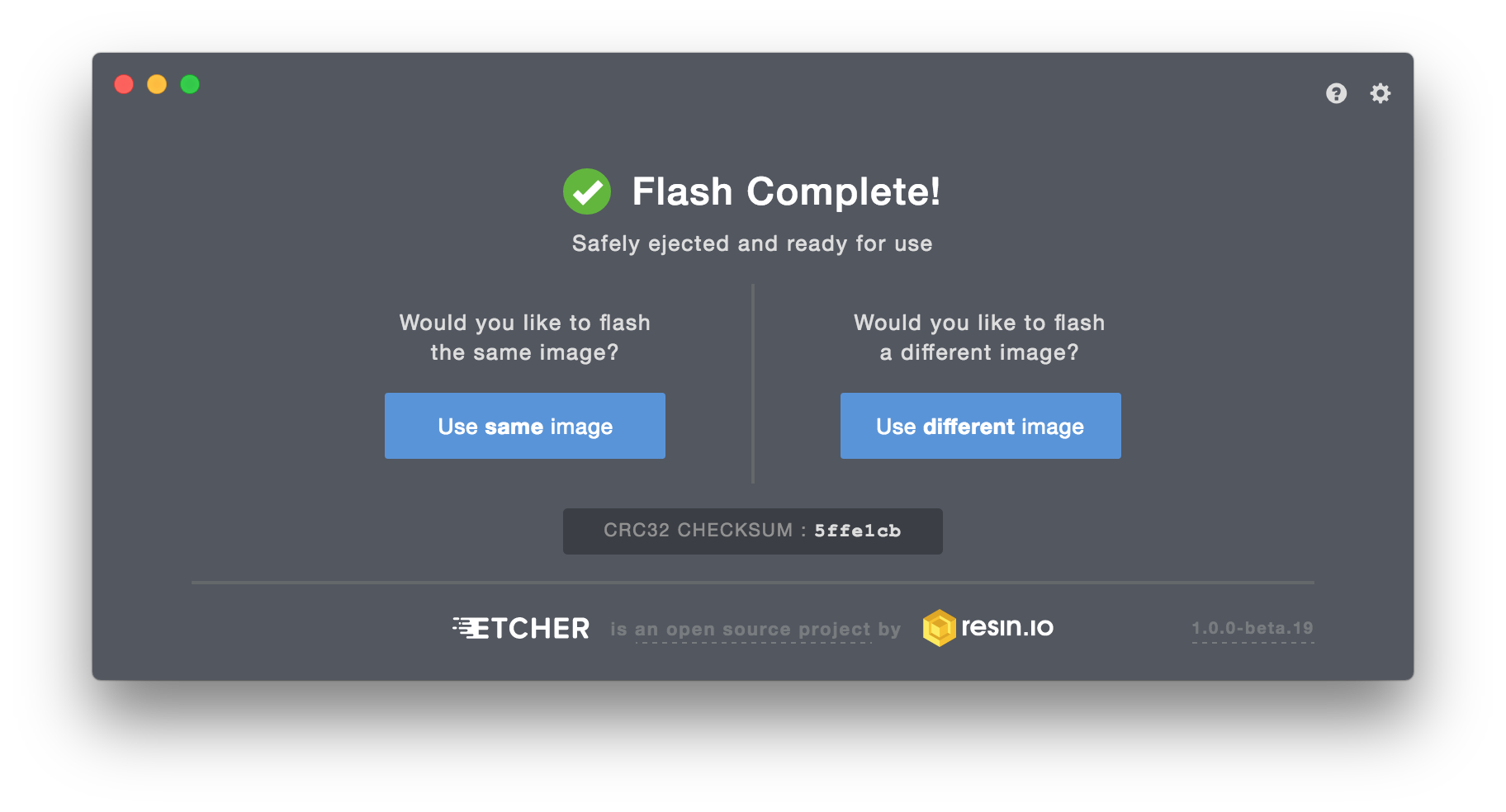
- Finally, Etcher will show a notice that the flash has been successfully completed.
You're safe to unplug the SD card and plug it into the brick.
¶ Step 3a - Modbrick: Boot the Brick
Insert your SD Card into the SD Card Slot of the Raspberry Pi inside the Modbrick and press ON.
The LEDs "PWR5" and "PWR9" indicate correct power being supplied to the Raspberry Pi and the Motor Board.
The LED "STAT" blinking green indicates successful connection between the Modbrick Control Chip and the Raspberry Pi.
The Button "RST" kills all power to your Modbrick and should be used only if you are unable to shut down your Robot remotely.
About one Minute and a reboot later, the Modbrick should dictate you it's IP Address, which you should note down for later.
Validate that your Modbrick startet successfully by sending him a ping from your terminal:
ping 172.30.2.23
> PING 172.30.2.23 (172.30.2.23) 56(84) bytes of data.
> 64 bytes from 172.30.2.23: icmp_seq=1 ttl=64 time=2.21 ms
> 64 bytes from 172.30.2.23: icmp_seq=2 ttl=64 time=2.92 ms
> 64 bytes from 172.30.2.23: icmp_seq=3 ttl=64 time=2.35 ms
...
Your Modbrick's IP Address should correlate to
172.30.2.<ID>with ID being your group id excluding the hundreds digit (123 -> 23).
¶ Step 3b - EV3 Brick: Boot the Brick
After you successfully flashed the image onto the SD card and inserted it into the slot, boot the brick by pressing the square button in the center of its control keys.
At first, you will see the Mindstorms boot splash and the red LEDs will be lit.
Shortly thereafter follows the boot splash and the LEDs are changing their color to orange.
Blinking indicates disk activity on the SD card.
During the first boot, the screen may go blank and the whole startup process can take significantly longer.
This is because the EV3 has to take care of some initial housekeeping activities.
After a minute or two, you will see the Brickman logo and a text saying "Brickman loading...".
Brickman is the main user interface providing the ability to configure wireless and network settings, check the battery and connectivity status as well as lots of other things.
Finally, the LEDs turn green, and you will be greeted with the main menu of Brickman:
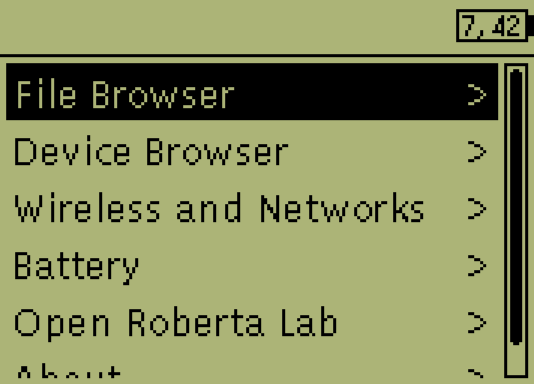
If this is not the case, and you instead hear some sounds from the robot, somehow the standard LEGO MINDSTORMS E3 firmware has been loaded.
Please check the correct placement of the SD card, validate the integrity of the drive as well as the image or ask your tutor for help.
¶ Step 4b - EV3 Brick: Navigating
Right below the display in the bricks center are the main controls for navigating through menus.
The center button that turned on the EV3 also serves as the "Enter" key and therefore lets you enter deeper menu levels.
You can leave a menu by pressing the separate button in the upper left corner of the main controls.
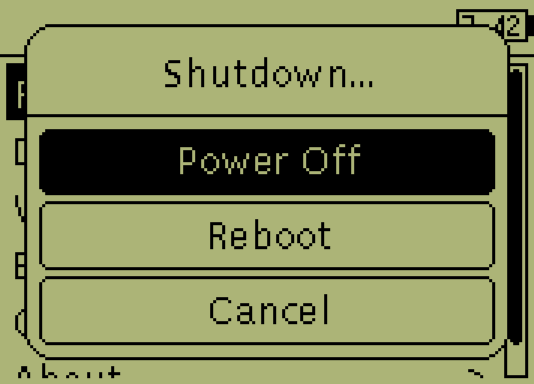
When pressed in the main screen, it also prompts a dialog for shutdown or reboot of the brick.